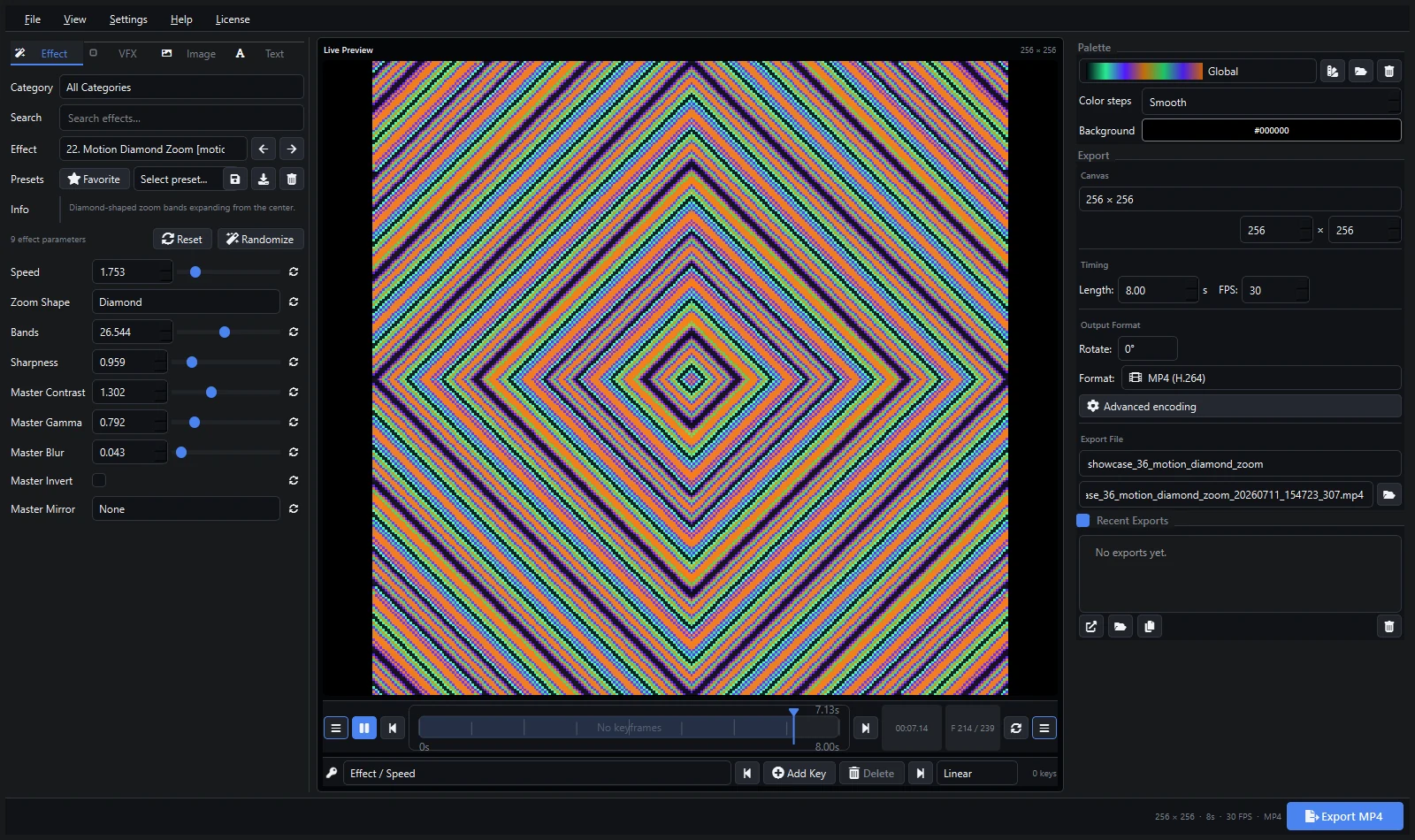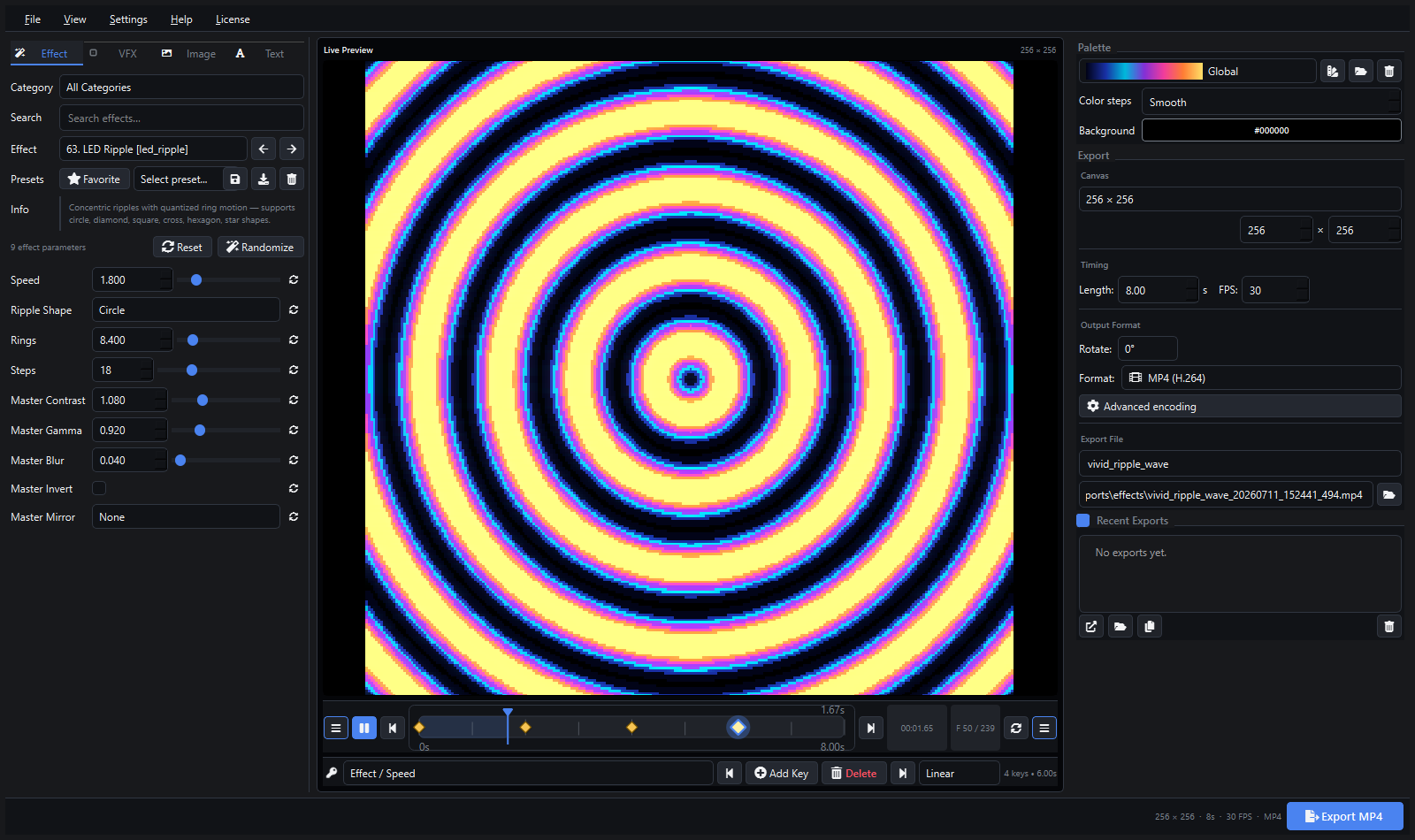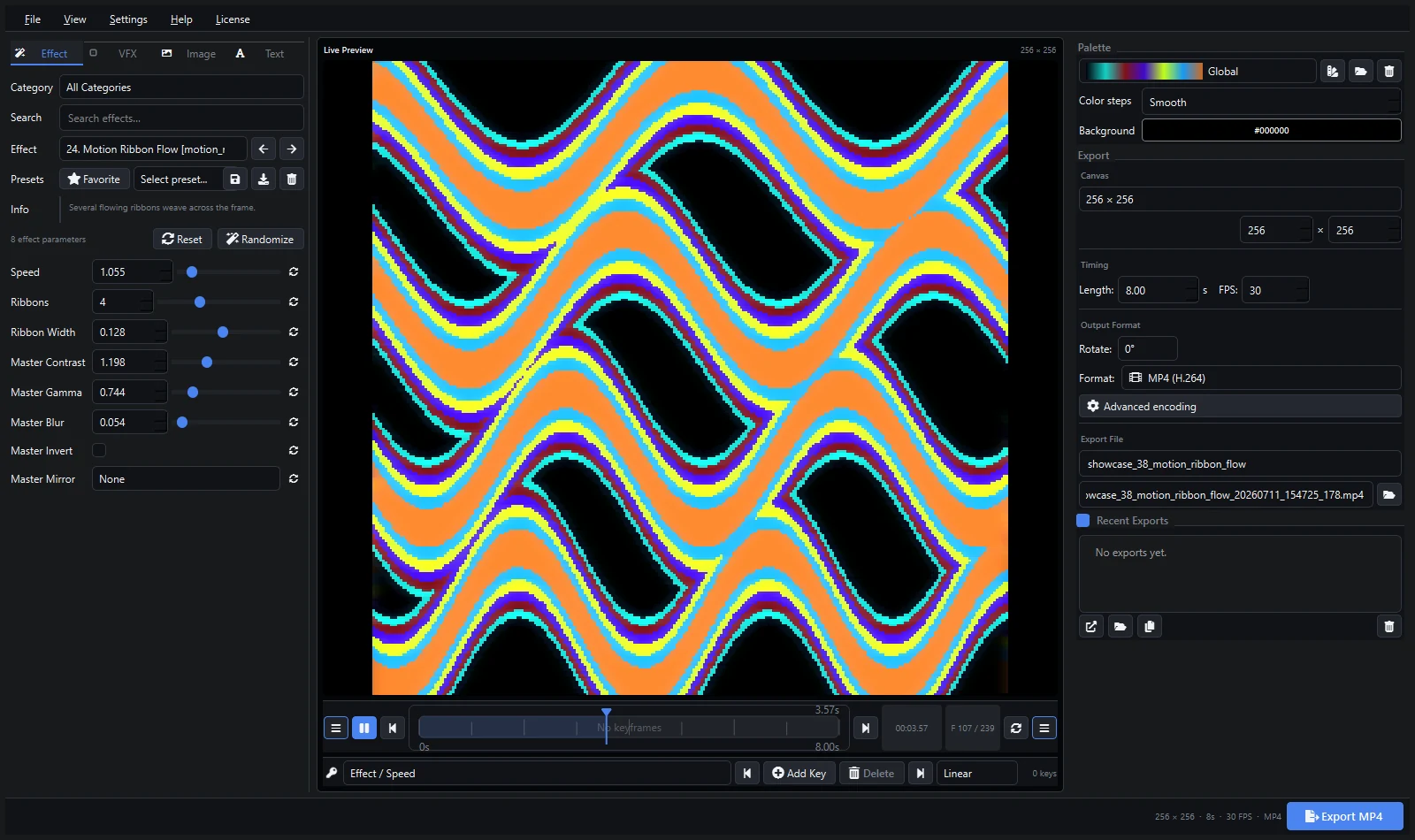
Pixel LED Animator 3 is a fast source of geometric, organic, pixel-based, and abstract motion for Resolume Arena or Avenue. You can create the visual at its intended aspect ratio, animate effect parameters with keyframes, and export a clean loop for a deck or composition.
Choose the Composition Before Designing
Match the Pixel LED Animator canvas to the Resolume composition, slice, or LED processor target. For a square mapped surface, create a square source. For an ultrawide LED wall, use that ratio from the beginning rather than stretching a square clip later.
Choose a duration that works musically. A loop lasting beats × 60 ÷ BPM seconds will occupy an exact number of beats. At 120 BPM, eight beats equal four seconds. Set a stable frame rate such as 30 or 60 FPS according to the show pipeline.
Create a Seamless Visual
Start with a generator whose motion naturally repeats, then tune speed and phase while comparing the beginning and end. Use keyframes when a palette, scale, density, or VFX value should change over the loop. Keep tiny high-frequency detail under control because aggressive LED scaling can create flicker.
Export several visual families instead of minor color variations: a sparse particle clip, a bold geometric loop, a fluid organic scene, and a high-energy accent. This produces a more useful Resolume deck.
Export and Convert
Pixel LED Animator 3 can provide MP4, MOV, AVI, and other video outputs. Resolume officially supports common containers including MOV, AVI, GIF, MP4, MPG, and MPEG. H.264 MP4 is convenient for review and delivery.
For demanding live playback, Resolume recommends its GPU-accelerated DXV codec. Export a high-quality master from Pixel LED Animator, open it in the free Resolume Alley converter, and create a DXV file. Resolume recommends Normal Quality without alpha as a safe default; use High Quality only when gradients show visible banding.
Resolume video format documentation · Official Alley conversion guide
Load and Test the Clip
Add the finished file to a Resolume deck, set playback to loop, and confirm scaling in the composition and Advanced Output. Test at show resolution with the intended number of layers and effects. A clip that plays smoothly alone may behave differently in a large composition.
Do not rely on a general codec pack to solve playback problems. Resolume’s own guidance recommends using the codecs you actually need and converting troublesome media to DXV.
Practical Export Checklist
- Correct composition dimensions and pixel aspect ratio
- Exact loop duration and stable FPS
- No accidental audio track
- Black level tested on the real LED output
- DXV conversion completed for performance-critical playback
- Source preset and master export archived
Explore Pixel LED Animator 3 · Buy the lifetime version 3 license