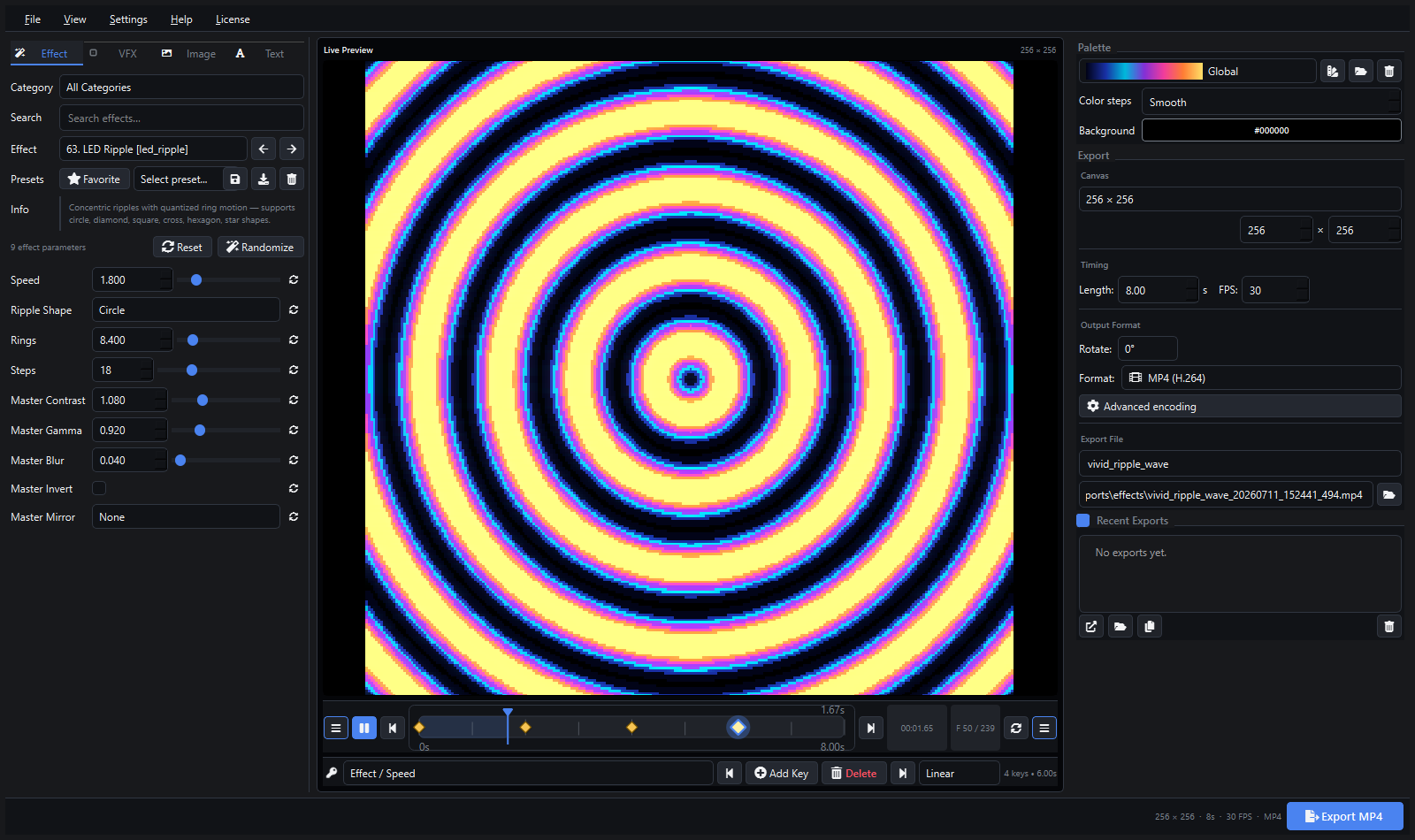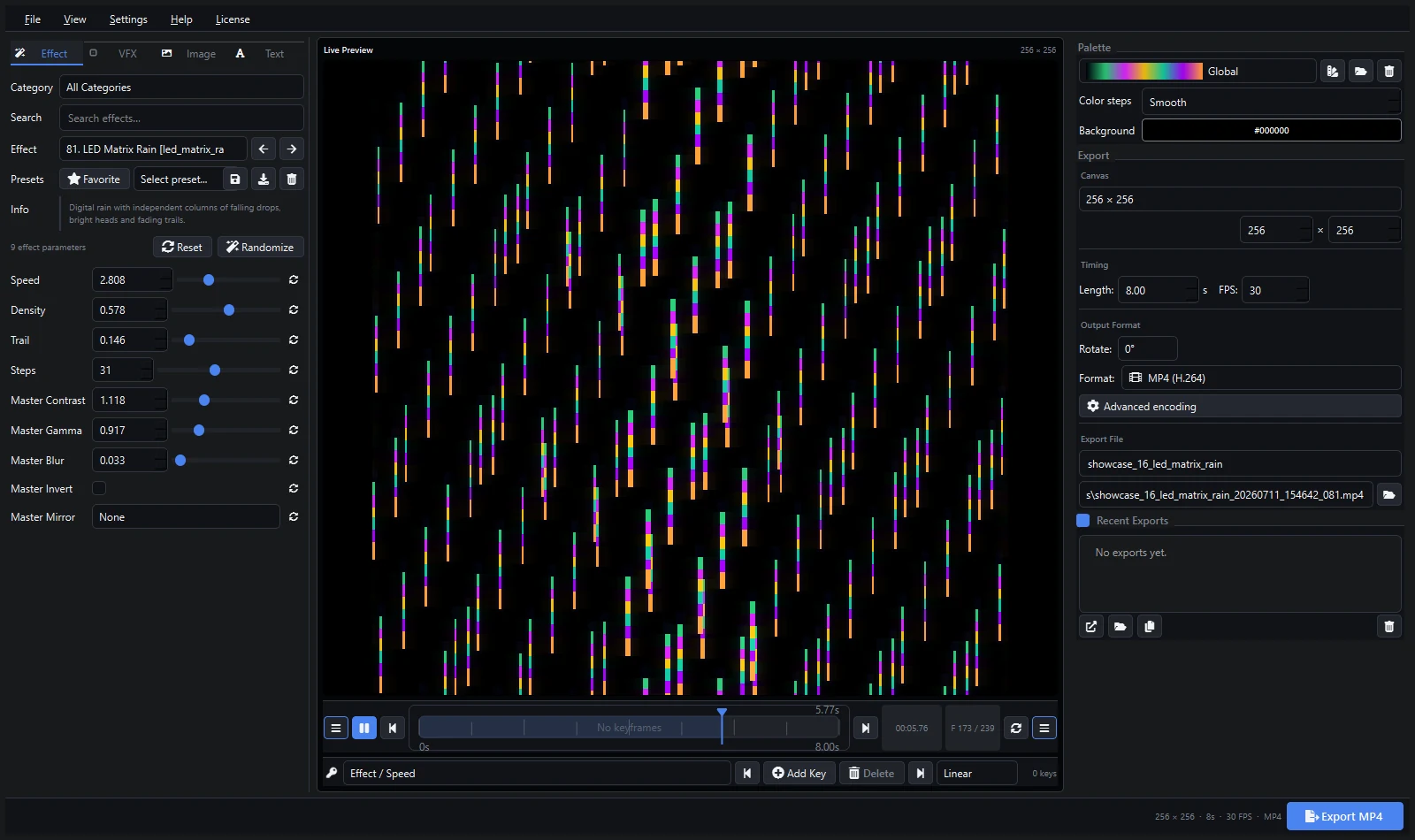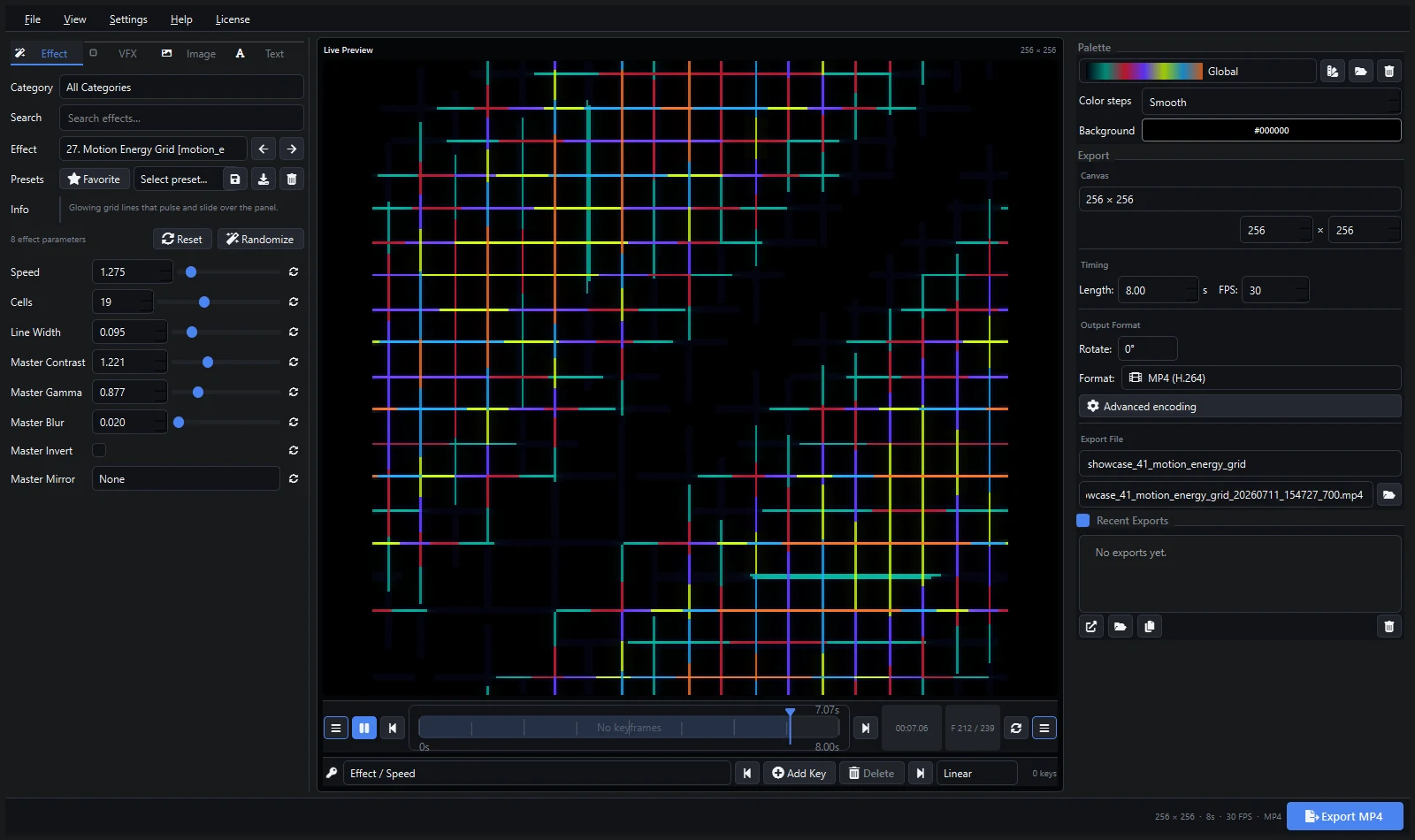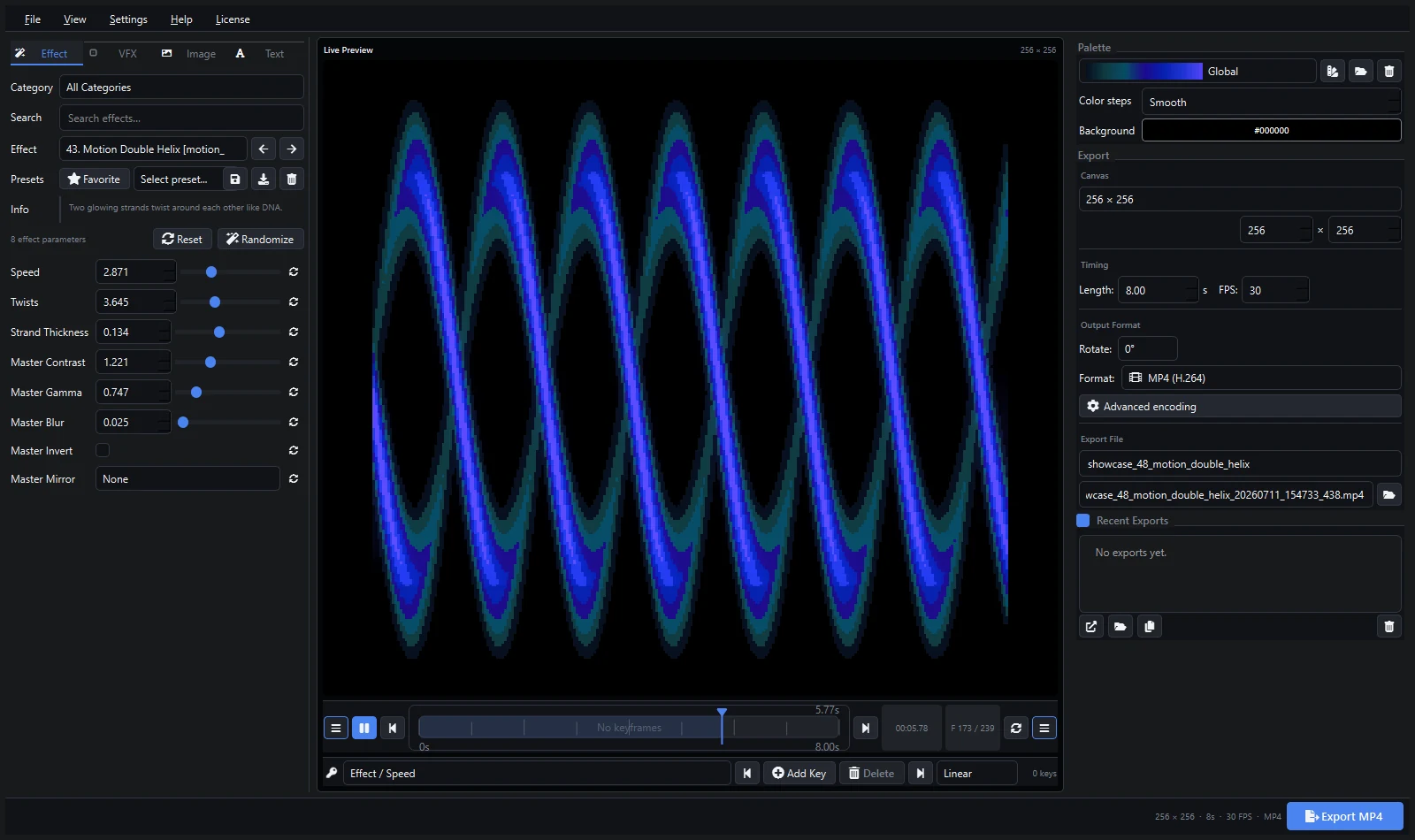
Pixel LED Animator 3 can render standard video, image sequences, animated formats, and XDAT. There is no single best format for every LED workflow. The correct choice depends on whether the destination expects controller data, a compressed delivery file, a high-quality master, or performance-optimized live media.
Quick Recommendations
| Destination | Start with | Important note |
|---|---|---|
| Compatible LEDEdit workflow | XDAT or AVI | Confirm controller, dimensions, FPS, and pixel order with a short test |
| Resolume Arena/Avenue | MP4 master, then DXV | Convert performance-critical clips with Resolume Alley |
| MADRIX 5 | MP4, AVI, or MOV | Load through SCE Video and use a codec available on the MADRIX PC |
| xLights | MP4 | Use the Video effect and keep the media path stable |
| Jinx!, LEDVision, or another player | MP4 or AVI | Verify the exact software and controller import requirements |
| Editing or archival master | Lossless AVI/MOV or image sequence | Larger files preserve quality for later conversion |
XDAT
Use XDAT when the target LEDEdit workflow explicitly supports it. Match canvas dimensions and frame rate to the controller project. XDAT is specialized output rather than a universal video format, so it should not be used as the master for Resolume, MADRIX, or xLights.
MP4 H.264
MP4 H.264 is compact, easy to preview, and broadly accepted. It is a sensible delivery and testing format for Resolume, xLights, MADRIX, and many general media players. Compression can soften sharp pixel edges or introduce banding, so inspect the real output before archiving only the MP4.
AVI and MOV
AVI and MOV are containers; actual compatibility depends on the codec inside. They are useful for high-quality or lossless masters and software that explicitly accepts them. Store a master when footage will be converted to another playback codec.
Resolume supports common MP4, MOV, and AVI media, but recommends DXV for demanding playback. Convert a master with Resolume Alley instead of treating DXV as a universal codec.
MADRIX 5 loads video through SCE Video, while xLights lists MP4, MPG, AVI, MOV, FLV, MKV, and ASF for its Video effect.
Image Sequences
Use an image sequence when every rendered frame must remain individually accessible or another application will perform the final encoding. Sequences require more files and careful naming but avoid inter-frame compression and make damaged frames easier to replace.
Settings That Matter More Than the Extension
- Canvas dimensions: match the LED mapping or preserve its aspect ratio.
- Frame rate: use one value consistently through generation, conversion, and playback.
- Loop boundary: compare first and last frames and avoid duplicate end frames.
- Black level: test on actual LEDs; near-black detail often disappears.
- Color order: controller RGB order is separate from video appearance.
- Audio: omit it unless the destination genuinely uses it.
Keep a Master and a Delivery File
A reliable workflow stores the Pixel LED Animator preset, a high-quality master, and the destination-specific file. If the controller, codec, or screen dimensions change, return to the preset or master rather than transcoding an already compressed delivery file repeatedly.
LEDEdit and XDAT workflow · Resolume loop workflow · MADRIX workflow · xLights workflow
Explore Pixel LED Animator 3 · Buy the lifetime version 3 license